


Choosing the right software interface structure is critical when building a user experience. Discover how selecting the ideal dashboard layout archetype makes or breaks your generative AI app development workflow.
The Architecture Component Blueprint: More Than Just Code
In the rapidly evolving world of artificial intelligence code generation, launching a Minimum Viable Product (MVP) has become accessible to nearly anyone with a concept. High-capacity large language models can spin up functional scripts, compile logic structures, and render interfaces in seconds. However, when relying on standard, open-ended natural language requirements, teams frequently discover a frustrating UX hurdle: the generated application lacks a coherent, intuitive dashboard layout system.
When an AI code assistant is instructed to build a web application dashboard without highly explicit structural constraints, it operates blindly. It often defaults to spitting out an unorganized wall of generic text data tables or cluttered forms stacked randomly on top of one another. The interface code might compile perfectly, but the actual user workflow is chaotic and frustrating to navigate.
To deliver a professional, scalable web application, you must determine your primary structural view layout before handing off instructions to an external language model. By understanding exactly when to deploy classic interface layout archetypes—such as multi-lane Kanban boards, clean categorical Tabs, or efficient List-with-Details panels—you can force the generative engine to output intuitive user interfaces on the very first try.
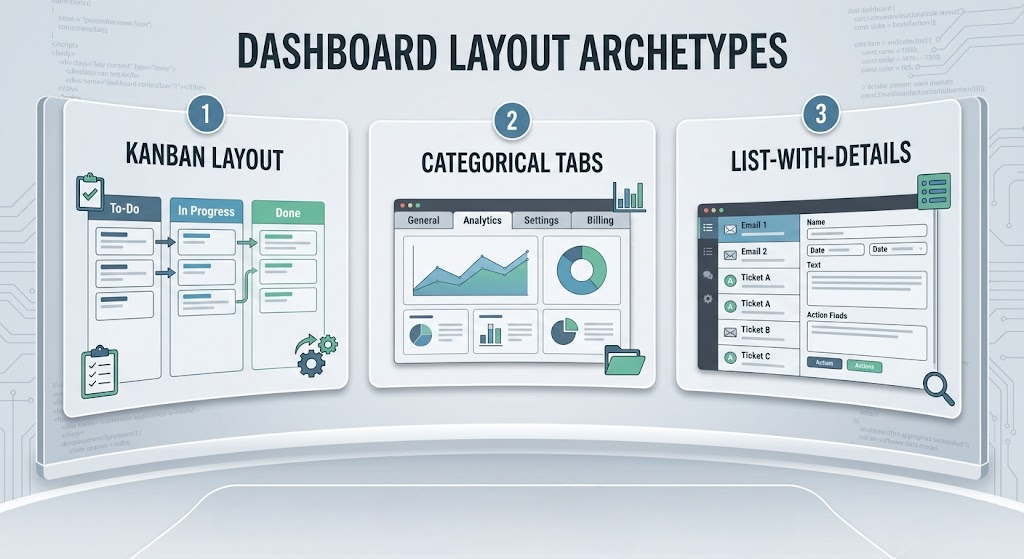
The Kanban Board Layout: Tracking Status and Operational Progress
The Kanban layout structure is the undisputed industry standard for web applications centered around clear operational stages, workflows, or states. Derived from agile project management methodologies, a digital Kanban system maps data objects into vertical columns representing progressive phases of execution.
This layout archetype is best utilized when your application entities possess a distinct state field that changes frequently over time. Classic software examples include:
- Project and Task Management Systems: Moving task items from “To-Do” to “In Progress” and eventually “Completed.”
- Sales Pipeline and CRM Hubs: Dragging client records through distinct conversion phases like “Lead Generated,” “Proposal Sent,” and “Deal Won.”
- Content Editorial Calendars: Tracking articles as they pass from “Draft” status to “Review,” “Approved,” and “Published.”
When you explicitly inject Kanban card layout rules into your application blueprint instructions, the AI engine understands how to structure its frontend code around horizontal lane wrappers. It will group database tables logically by their status parameters, ensure clean card spacing, and optimize the rendering of status-based rows without mixing up state conditions.
The Categorical Tabs Layout: Maximizing Space with Segregated Content
When an application contains diverse, distinct data categories that do not naturally interact with one another, a Tabs layout is the ideal choice. Tabs work as structural navigation wrappers, allowing users to alternate cleanly between entirely different data views within the same dashboard window context.
The primary value point of a tabbed interface is the prevention of cognitive overload. Instead of overwhelming your end users by trying to cram every piece of historical data onto a single screen, you split the information blocks logically into independent view panes. This approach is highly recommended for:
- User Settings and Account Profiles: Dedicating independent tabs for “Personal Details,” “Security & Password Configuration,” and “Billing History.”
- Analytics Dashboards: Displaying high-level performance metrics grouped by timeframes or departments, such as separate tabs for “Daily Traffic,” “Sales Performance,” and “System Inventory.”
- Resource Centers: Organizing content libraries into segmented categories like “Documentation,” “Video Tutorials,” and “API Keys.”
From an AI prompting standpoint, requesting a Tab layout ensures the generated frontend script separates its rendering states. The large language model will organize the underlying application logic so that switching view tabs changes out active component arrays smoothly, avoiding layout breakage or slow page loading states.
The List-with-Details Layout: High-Velocity Data Inspection
For relational databases packed with dense informational records that require quick scanning, reviewing, and editing, nothing beats the efficiency of a List-with-Details layout (often called a master-detail split screen).
This layout breaks the screen space into a dual-pane system: a narrow vertical left panel displays a scrollable overview index list of items (showing basic properties like title and date), while a wide right panel dynamically updates to show the comprehensive, detailed attributes of whichever individual record is currently active. This design pattern excels in contexts like:
- Communication Hubs: Modern email client apps or messaging platforms where clicking an inbox summary loads the full text conversation pane on the right.
- Customer Support Ticketing: Reviewing an active stream of open inquiries while maintaining immediate editing access to submission fields, timestamps, and customer notes.
- Inventory Catalogs: Browsing thousands of stock items while instantly verifying price tiers, image media, and warehouse storage locations.
Specifying a split List-with-Details structure inside a master developer prompt tells the language model exactly how to map state hooks. It locks down the interaction between the index selection array and the main presentation card view, preventing the code from losing track of active data object references when a user switches between list entries.
How Visual Paradigm App Studio Automates Layout Blueprint Compilation
While picking the ideal dashboard style sets a clear direction for your application, manually mapping out the relational data logic, setting up API endpoints, and configuring the exact CSS variables needed to make a Kanban or List-with-Details view work smoothly is incredibly labor-intensive. Visual Paradigm’s AI-Powered App Studio streamlines this entire step by integrating structural design variables straight into an automated pipeline.
App Studio maps your layout choices directly to a persistent, live cloud storage container through a simple four-stage process:
- Data Entry: You provide your application’s basic goals using text specifications or import a plain-text PlantUML database script. The platform’s integrated analyzer immediately builds out a visual Entity-Relationship Diagram (ERD).
- Instant Infrastructure Provisioning: Entering your administration parameters commands the system to automatically spin up a secure, managed cloud database instance and expose live backend REST web APIs to process queries.
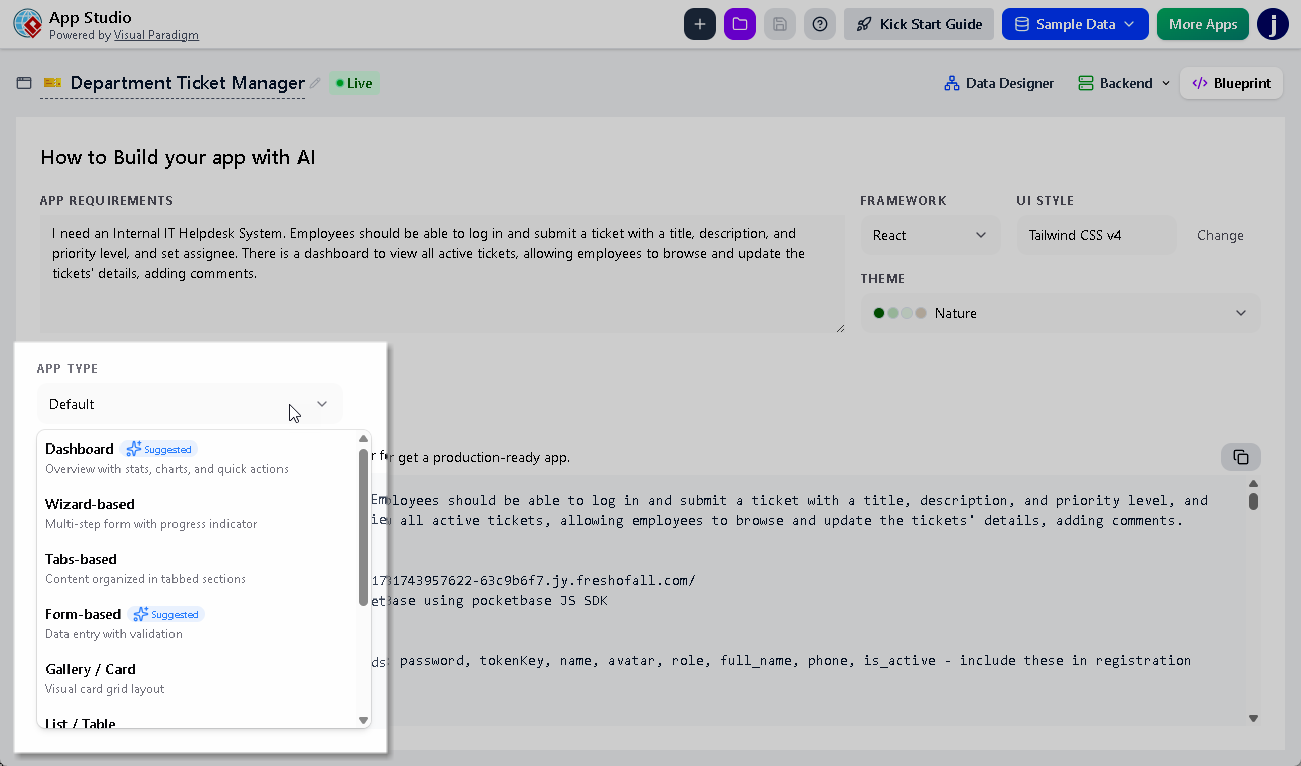
- Layout Selection: You access the configuration panel and choose your primary technical stack (such as React, Svelte, Vue, or Angular) alongside custom UI systems like Tailwind CSS v4. You then click your preferred design archetype tab—assigning a Kanban arrangement, multi-pane Tabs, or a split List-with-Details configuration.
- Master Prompt Generation: The environment instantly packages your framework selections, live cloud backend paths, structural schemas, and theme layout preferences into a highly structured, token-dense **AI Blueprint Prompt**.
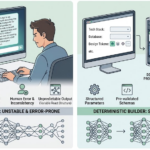
By copying this deterministic prompt payload directly into your Google AI Studio workspace or similar advanced generative environments, the model bypasses standard blind guesswork. It reads a complete, unambiguous architectural map and outputs functional, beautiful frontend client code that communicates perfectly with your live cloud backend database straight out of the box.
Validating Component Layout States via Automated Mock Data Seeding
A primary challenge when evaluating layout architectures is confirming how the user interface shifts when fields fill with complex records. A Kanban track or a List-with-Details view might look clean when empty, but overflow parameters, long text fields, or truncated titles can quickly break responsive columns if not properly validated.
App Studio addresses this production lifecycle problem with an integrated synthetic data seeding tool. Right from your project console dashboard, you can trigger a background automation sequence that instantly seeds your live database with contextually relevant mock data records. Your app layout instantly populates with realistic tasks, user entries, or content categories, allowing your product team to visually review element card spacing, inspect scroll containers, and adjust interface elements under true operational loads before deploying to your audience.
Conclusion: Building Smarter Interfaces with Structured Data Foundations
A successful web application relies on layout systems that prioritize data scannability and intuitive user actions over generic, default styling. Moving away from open-ended conversational prompts and locking down explicit dashboard layout archetypes allows you to build cleaner, highly scalable application interfaces with total precision.
By establishing your backend database models first and using structured design tokens, you can eliminate AI style hallucinations, build intuitive layout paths, and ship powerful MVP products with confidence.
Ready to deploy your hosted cloud container and export your custom dashboard prompt blueprint? Launch your development space inside the Visual Paradigm App Studio Workspace today. Complete feature access is immediately available to all active subscribers holding Visual Paradigm Online Combo Edition or Desktop Professional Edition license tiers.
Related posts:
 Prompt Engineering vs. Blueprint Engineering: The New Way to Build AI Apps
 React vs. Svelte vs. Vue: Choosing the Right Frontend for Your AI-Generated App
 The Token Limit Crisis: How to Feed Complex App Requirements to LLMs Without Running Out of Memory
 Stop Writing AI Prompts from Scratch: The Case for Deterministic Prompt Builders